


This tutorial shows you how to restore a backup you previously created in DirectAdmin. Follow the steps below to get your data back in just a few clicks.
1. Log in to your DirectAdmin account.
2. In the Advanced Features section, click Backup and Restore. Alternatively, type Backup in Search for pages, and the option will appear. Click on it.
3. Click Restore Backup. You will find it on the top left.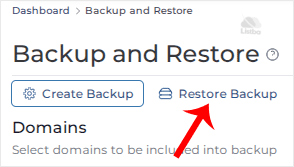
4. Under Restore Backup, click on the drop-down menu and select the backup you wish to restore.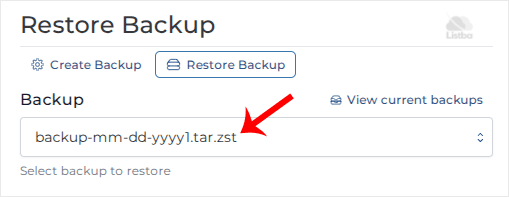
5. Under the Options section, uncheck the data you do not want to include in the restore.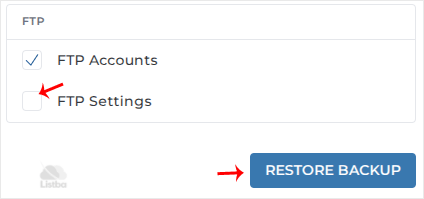
6. Scroll down to the end of the page and click on Restore Backup.
You can check the status of your restore from the Messages option. From the top right side, click on your Username >> Messages.
Note: The process of restoration can take some time. Check Messages after a few minutes. The speed of the operation will depend on the size of your backup.
